Fresh Install and Configuration of Debian (KDE)
1. Create a bootable USB drive
- Download balenaEtcher
- Download Debian (KDE)
- Flash a USB drive with the Debian (KDE) iso image:

2. Boot into the USB drive
- Press
F12when the computer is booting up
- Select the corresponding UEFI boot option (e.g.,
USB HDD: Kingston) and pressEnter
3. Install Debian (KDE)
- Once it logs in to Debian live session, open “Install Debian”:
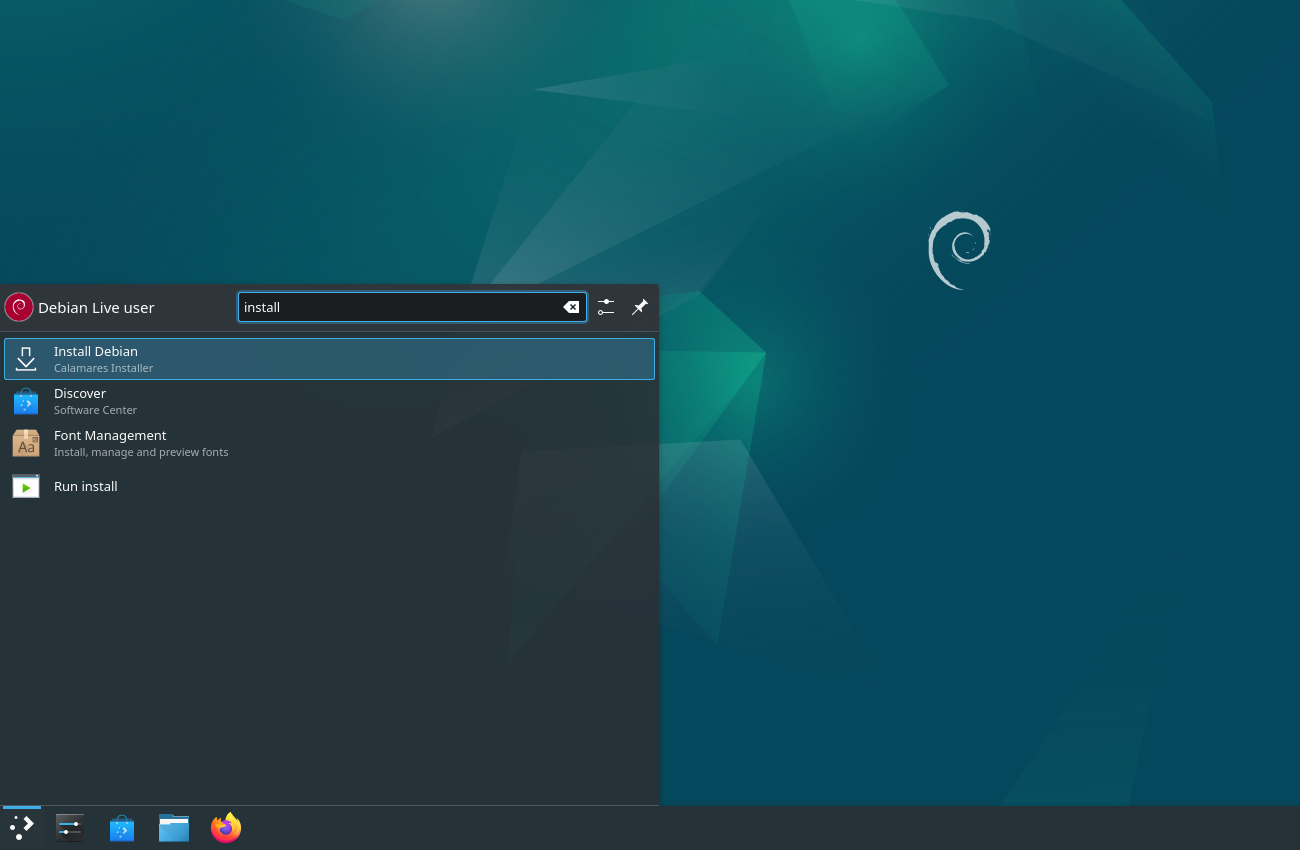
Note: (click to expand)
- If “Install Debian” is not present on the desktop, you may also access it using the Application Launcher:
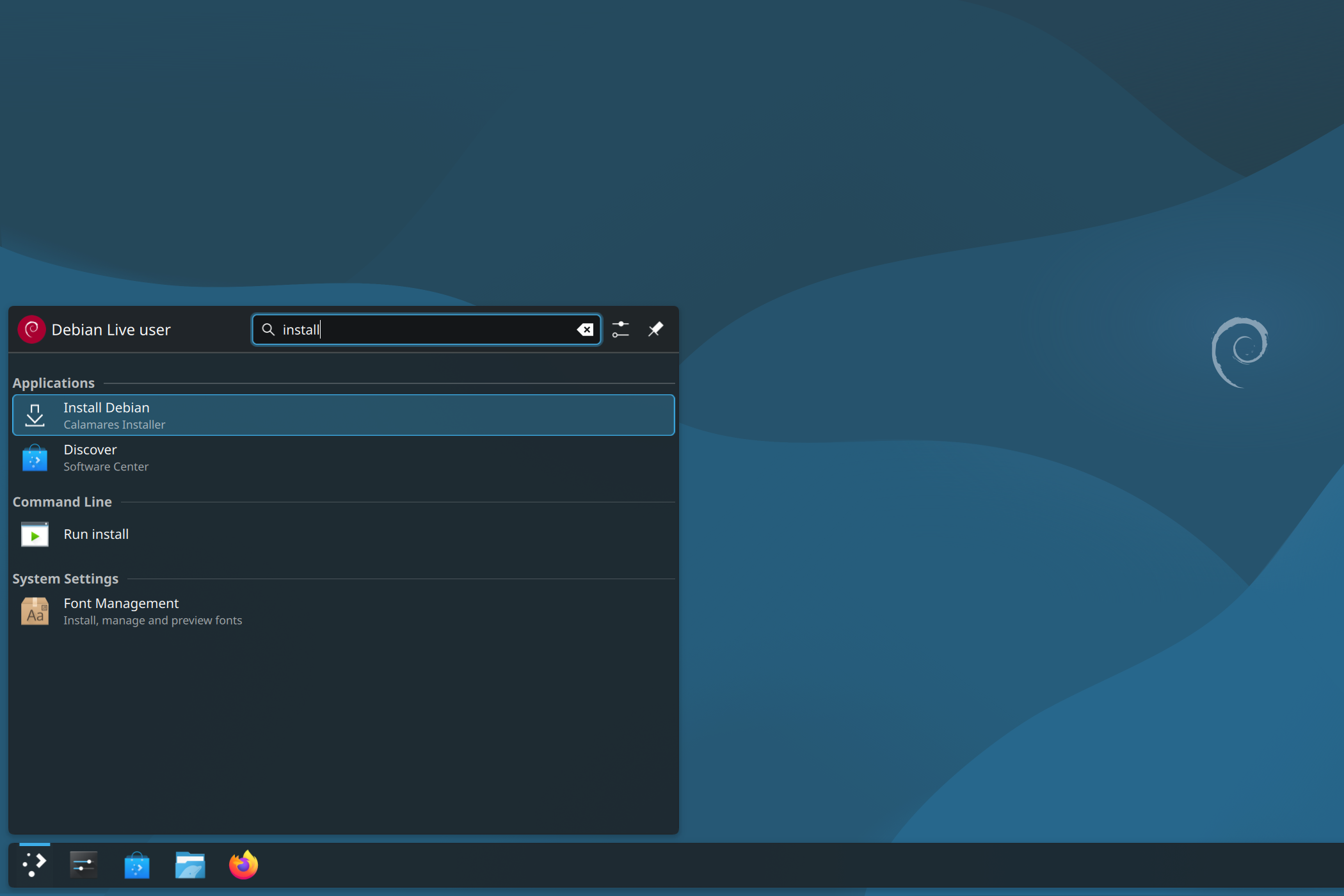
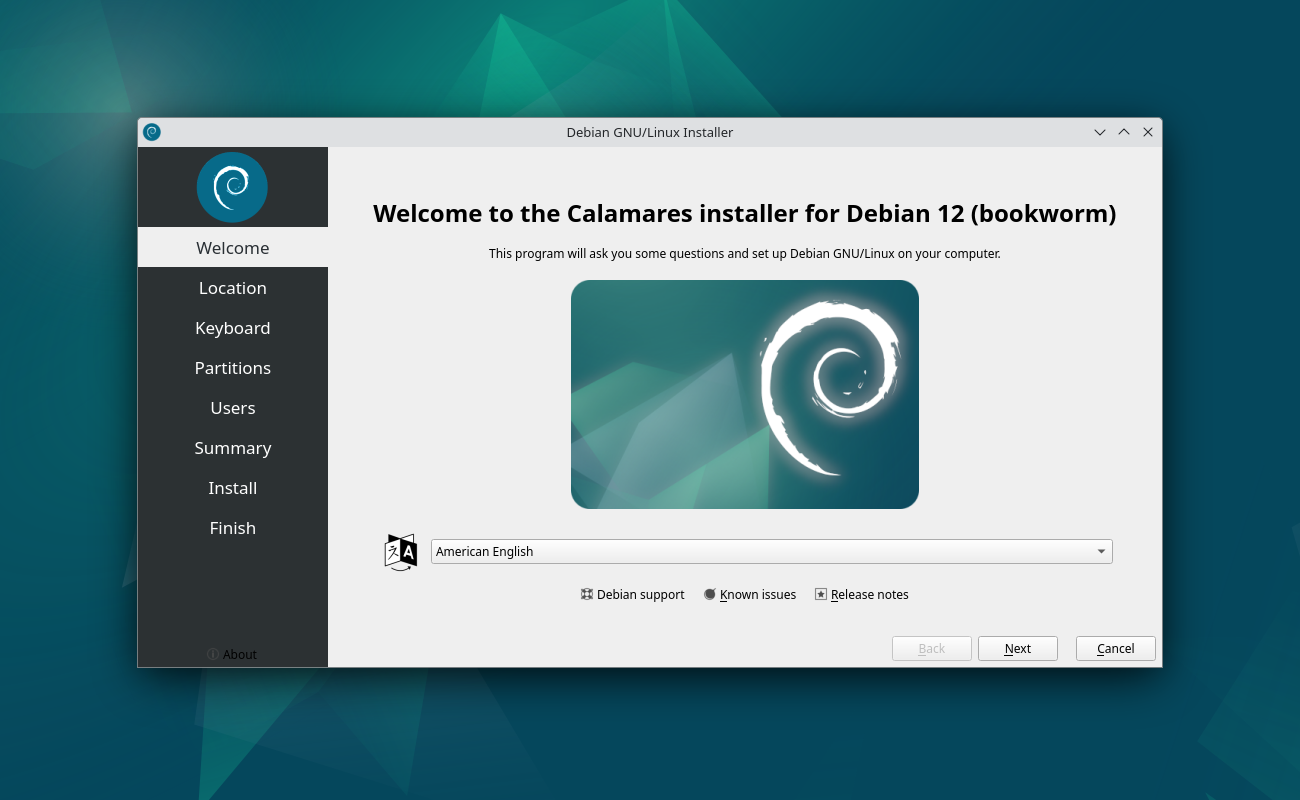
- Set the language, then “Next”:
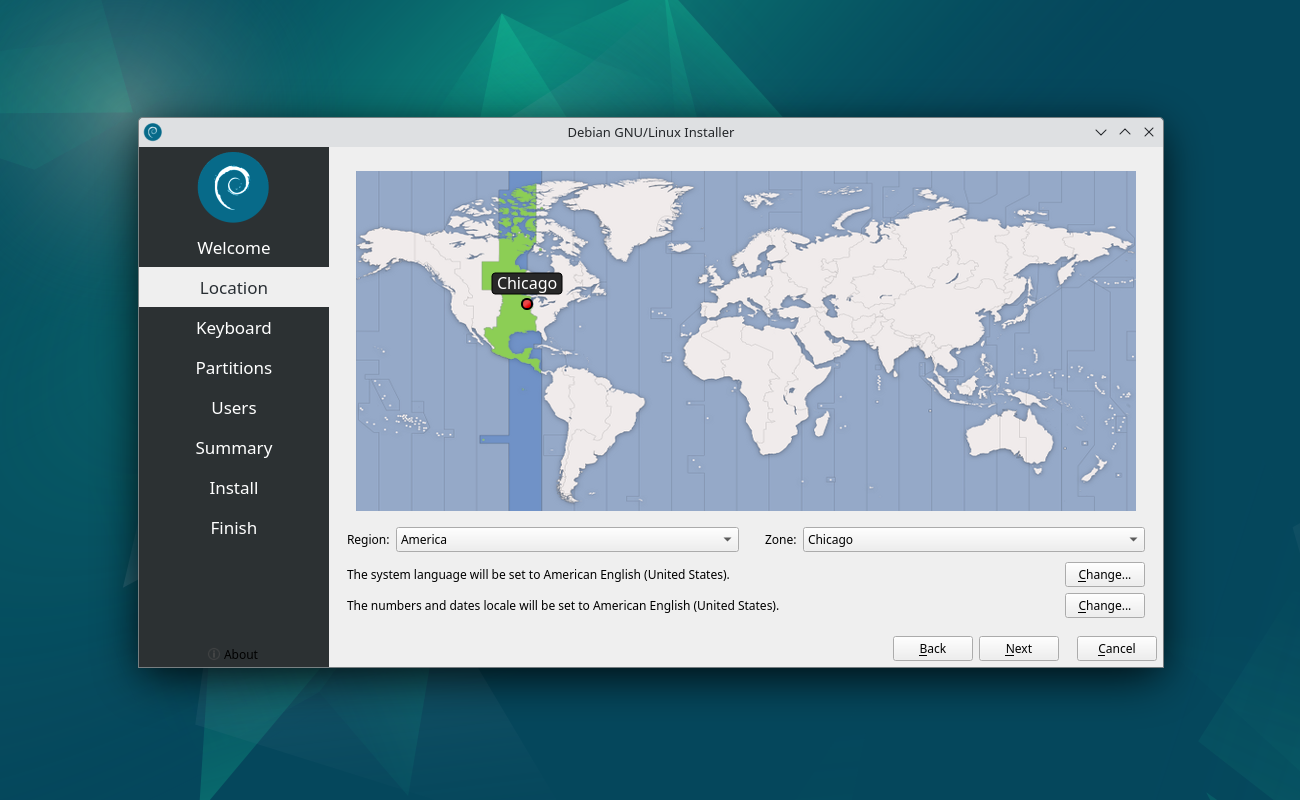
- Set the region and the zone, then “Next”:
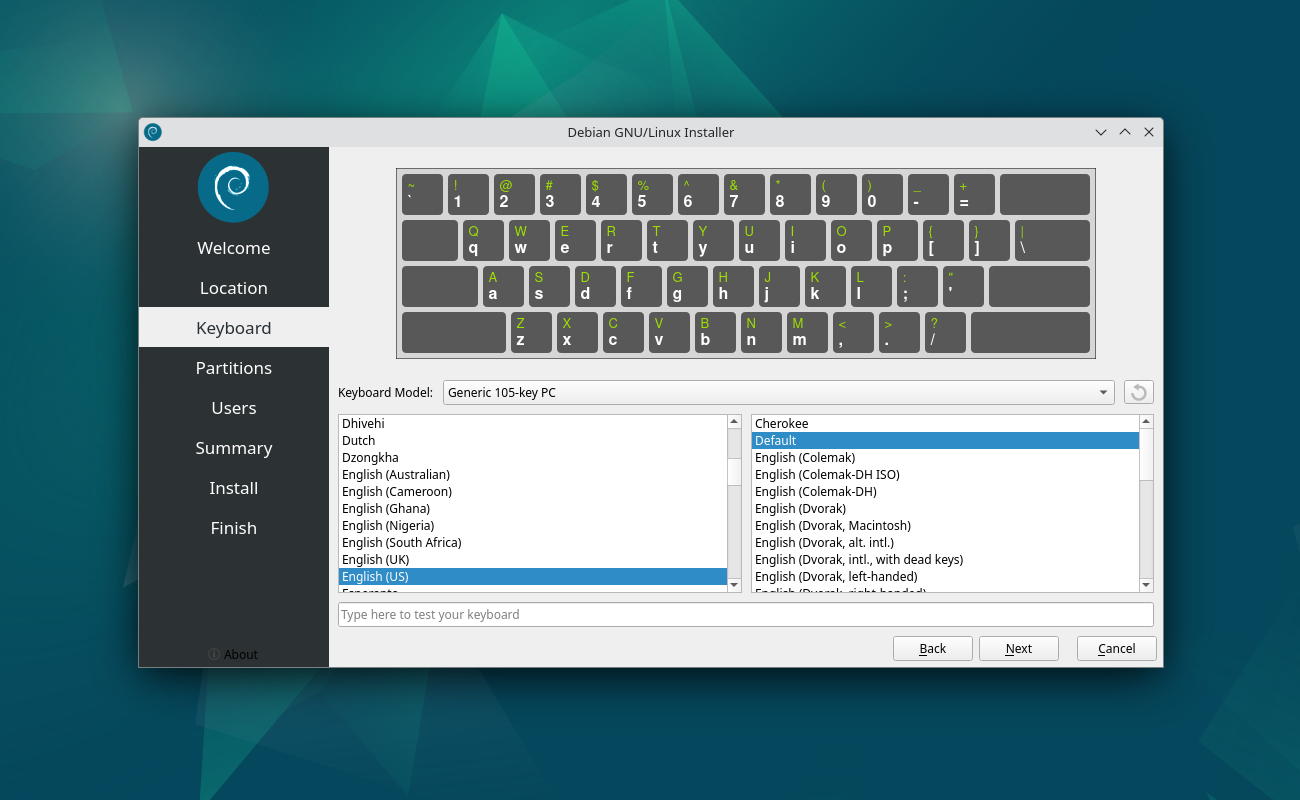
- Set the default keyboard, then “Next”:
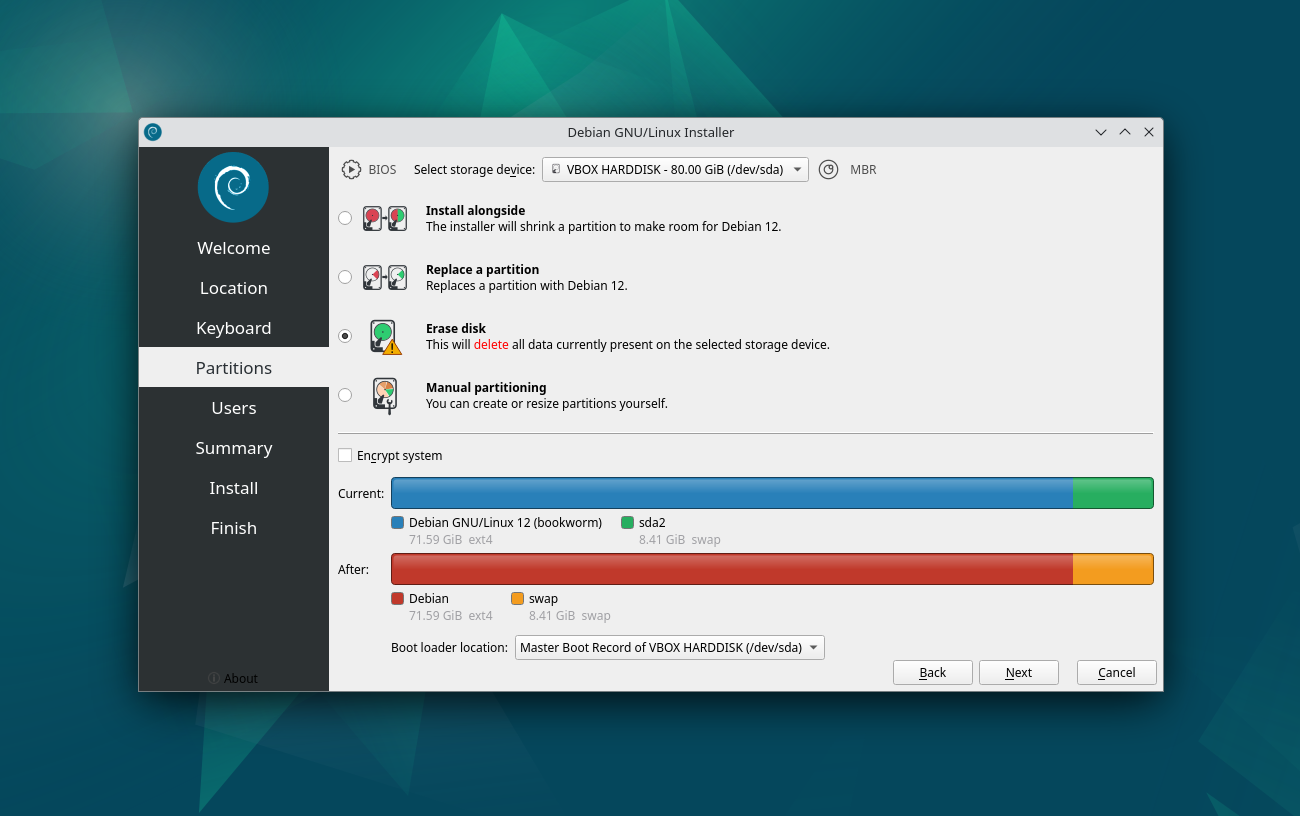
- Select “Erase disk”, then “Next” (if you plan to install multiple OS on a single physical drive, you might select “Manual partitioning”):
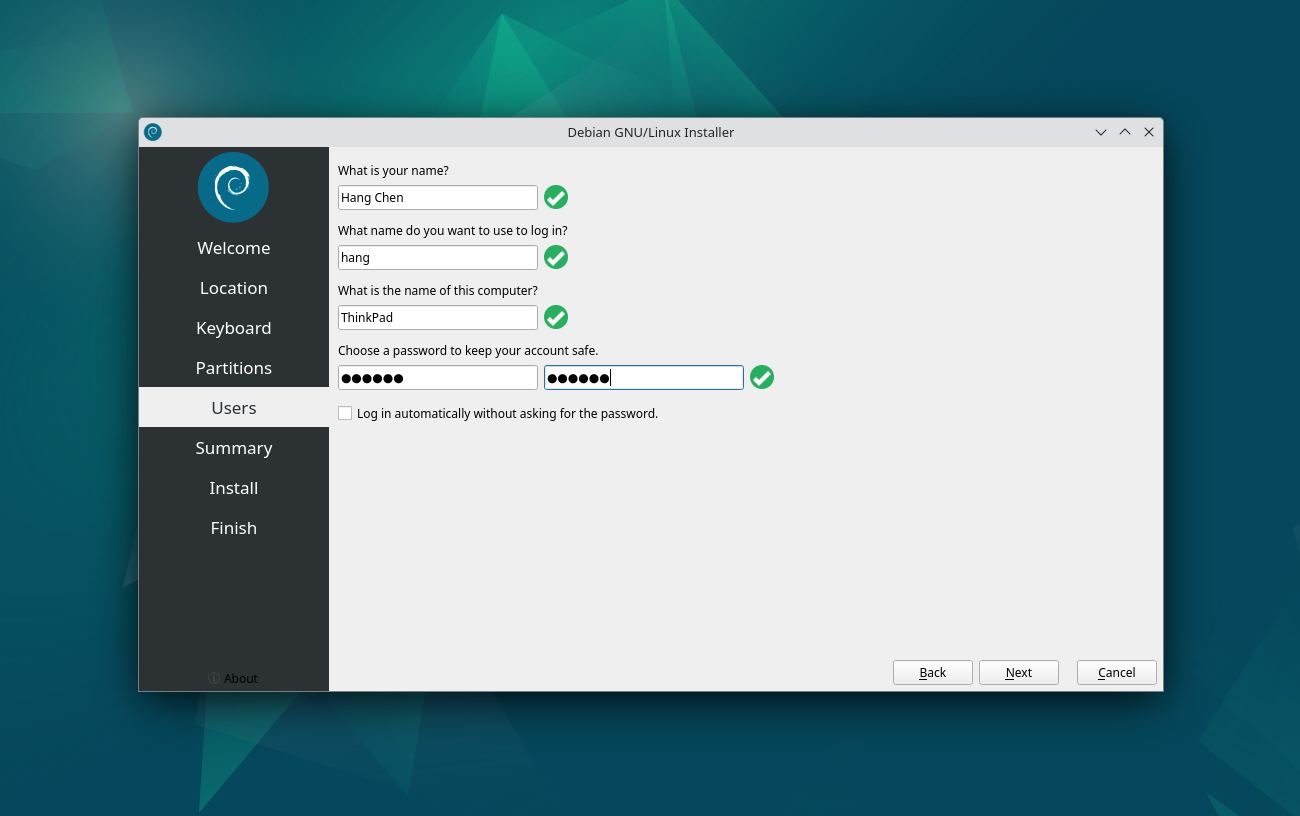
- Set the user account, then “Next”:
Note: (click to expand)
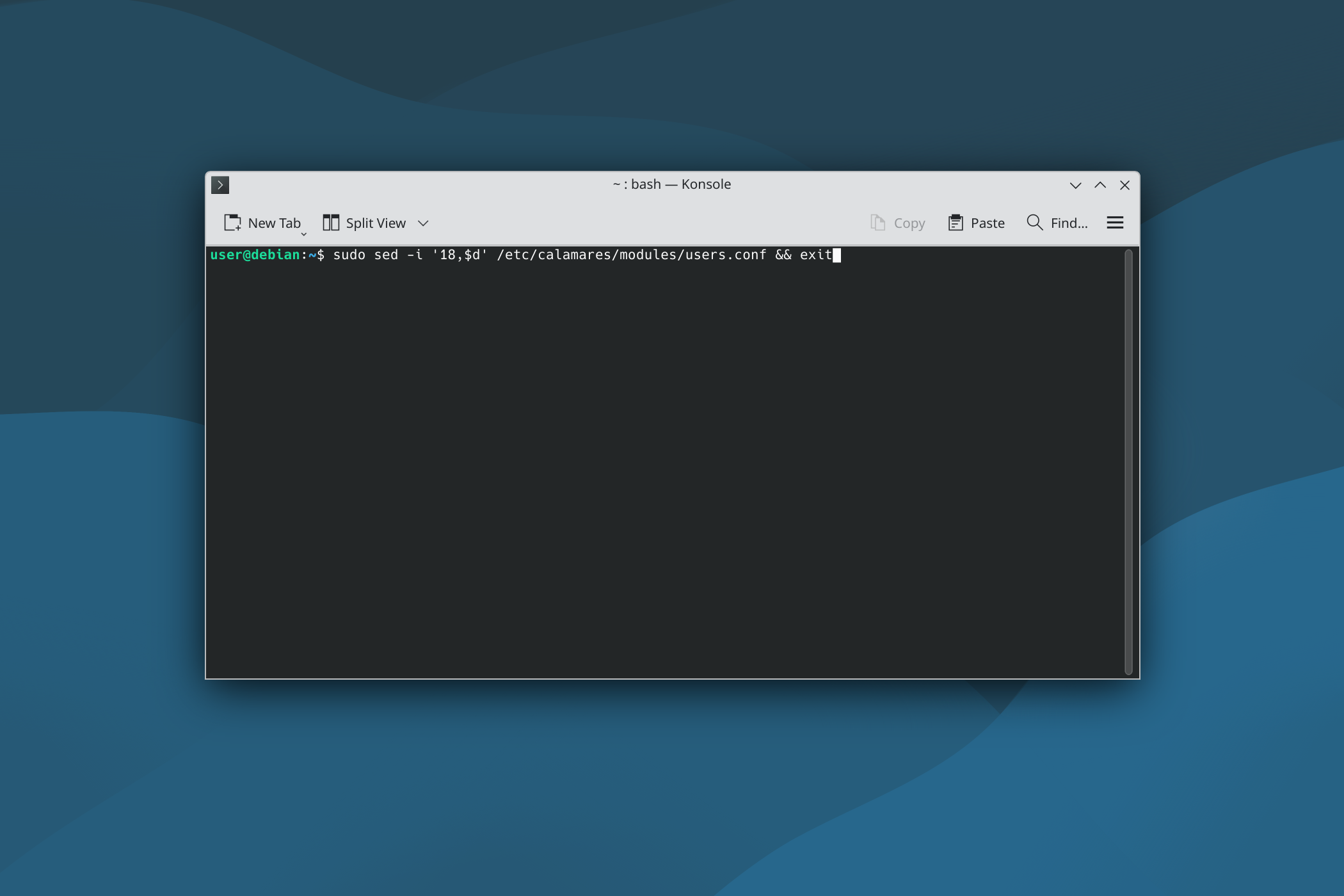
- Since the release of Debian 13, password policies have become more stringent. However, if you need to set a shorter password (e.g., 6 digits), you may execute the below command in the Konsole (it will automatically exit once it’s finished) and try installing the system again:
sudo sed -i '18,$d' /etc/calamares/modules/users.conf && exit
- “Install”:
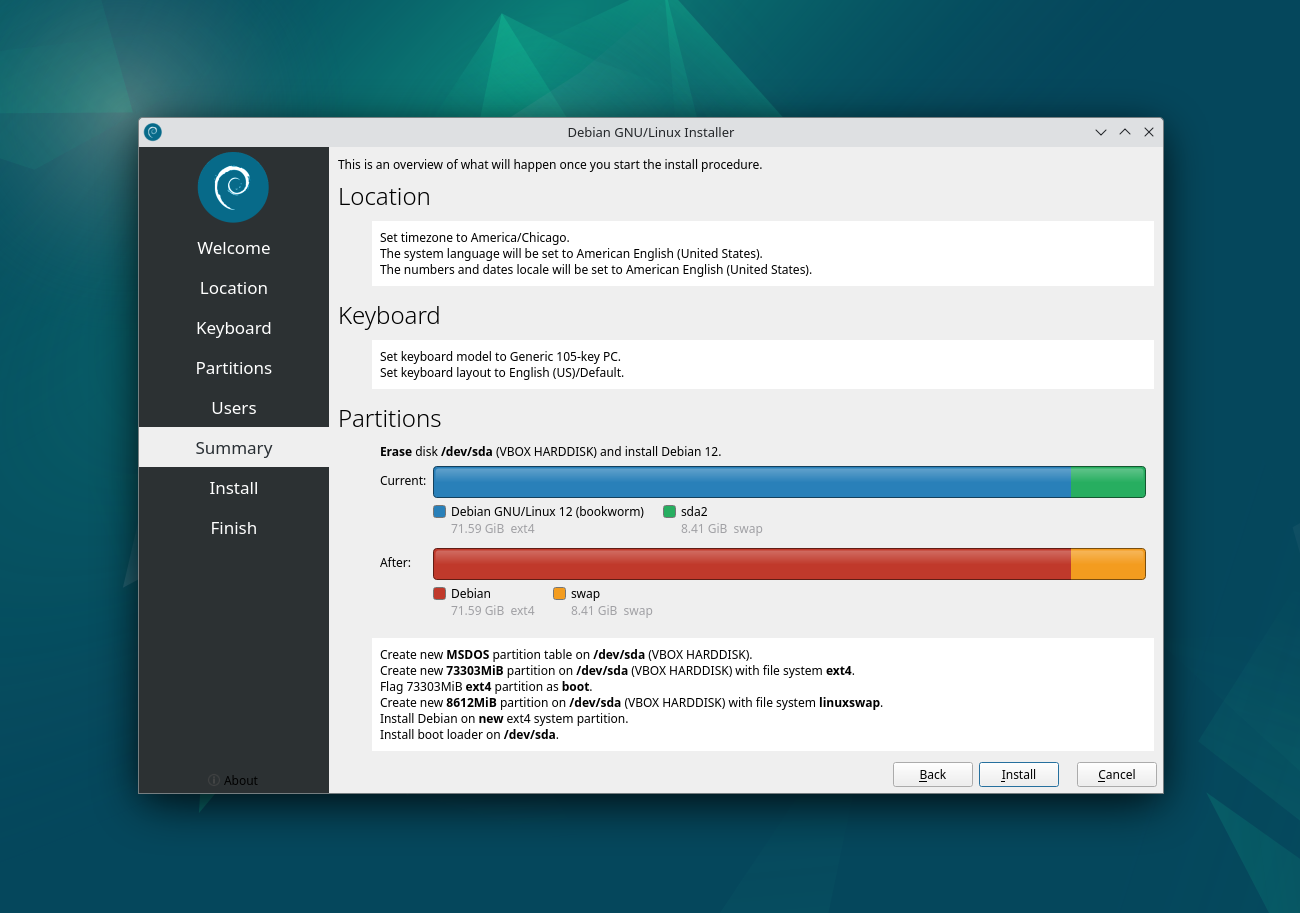
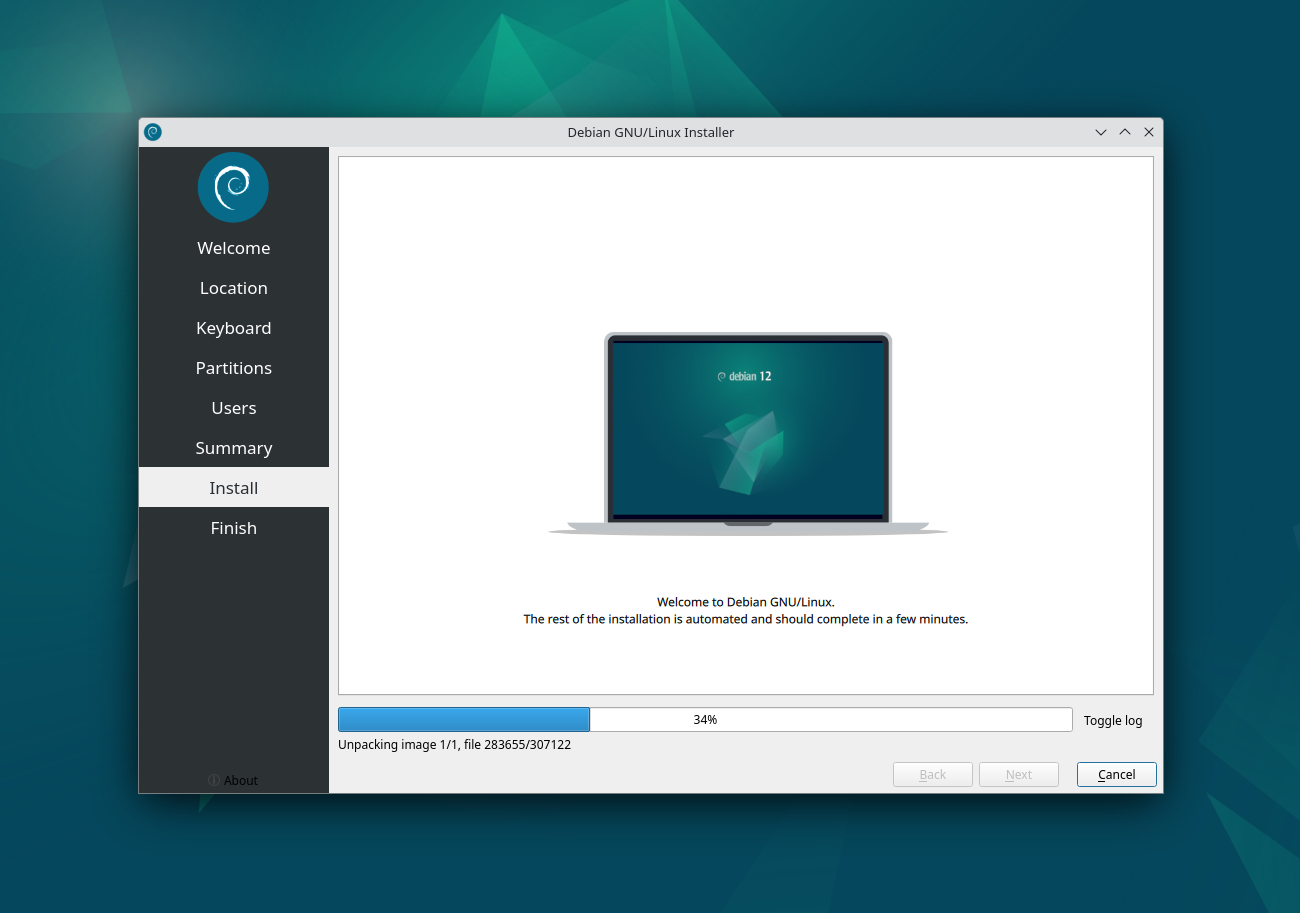
- Installation might take some time (if it goes to sleep, the “username/password” for the live session is “user/live”):
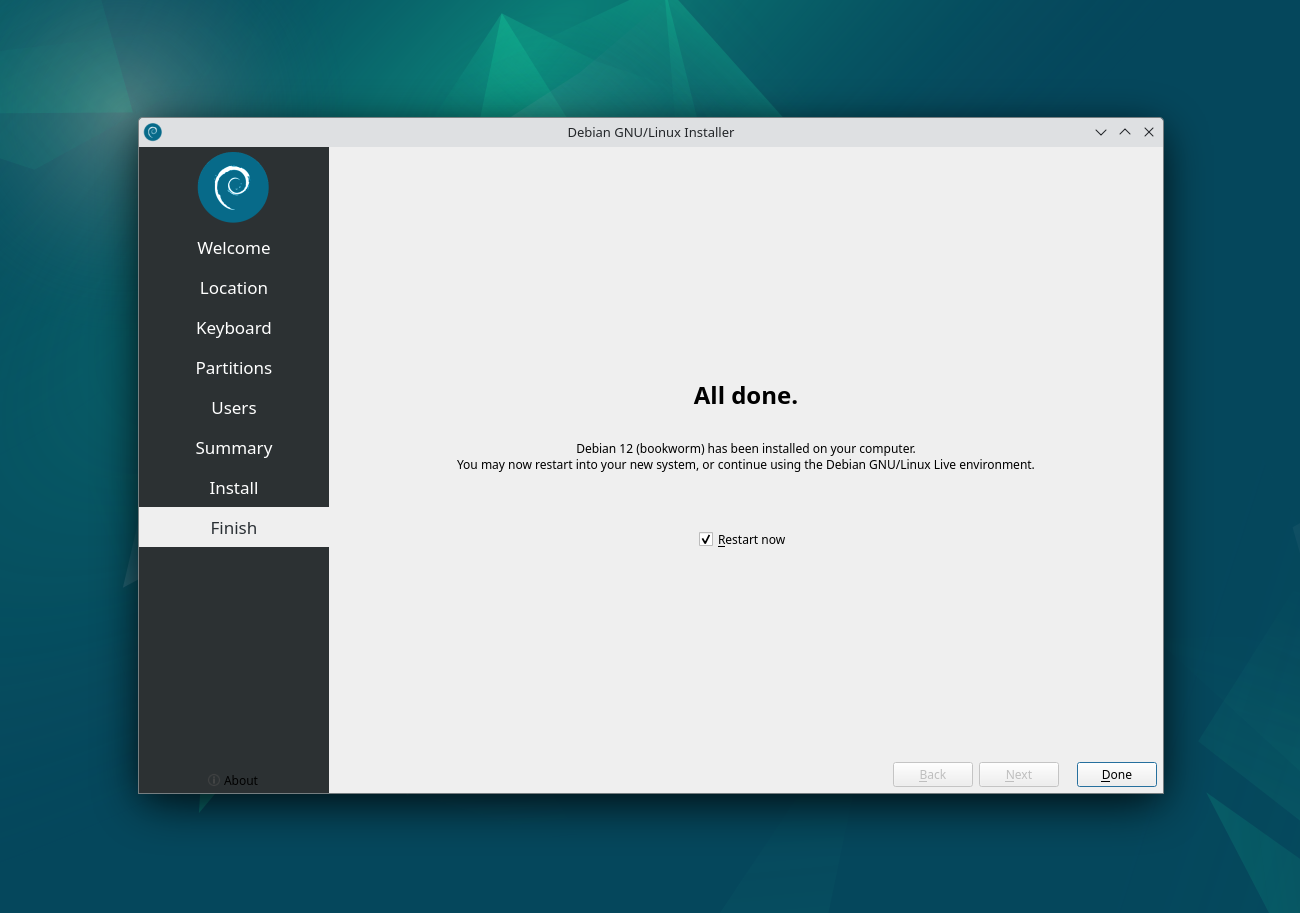
- Once finished, it will prompt a restart:
4. Configuration
- Connect to the internet
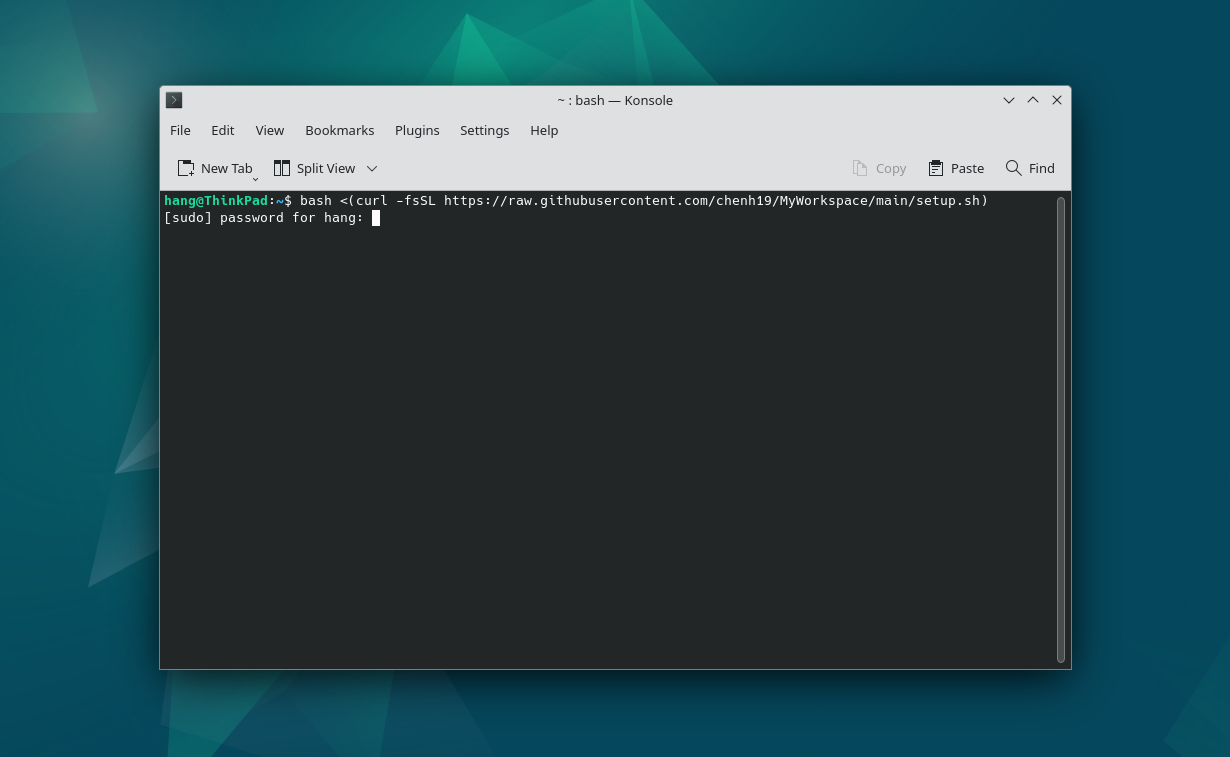
- Copy the below command, paste in the Konsole (terminal) and press
Enter:
bash -c "$(curl -fsSL https://raw.githubusercontent.com/chenh19/MyWorkspace/main/setup.sh)"
- Type your user password and press
Enterto run:
Note: (click to expand)
- If the text is too small in the Konsole (Terminal) before the scaling configuration, you may press
Ctrl++to make the text larger (this temporary setting will not be saved). - It will ask a few questions in terms of configuration preferences. If you didn’t notice immediately, it will simply pause and wait for your input.
- Once finished, it will prompt a reboot.
5. End
- All done, enjoy!
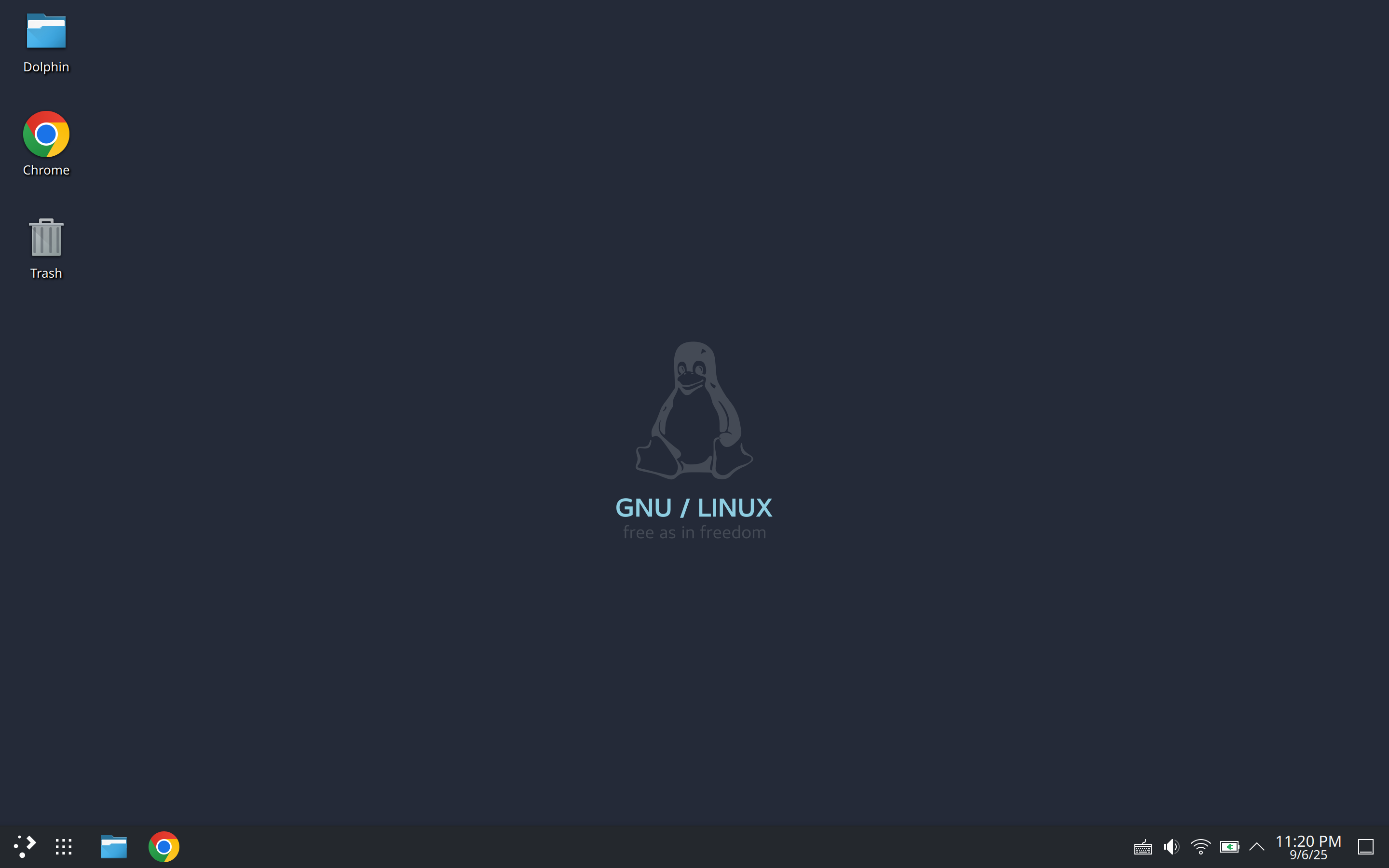
(Windows-style dekstop layout)
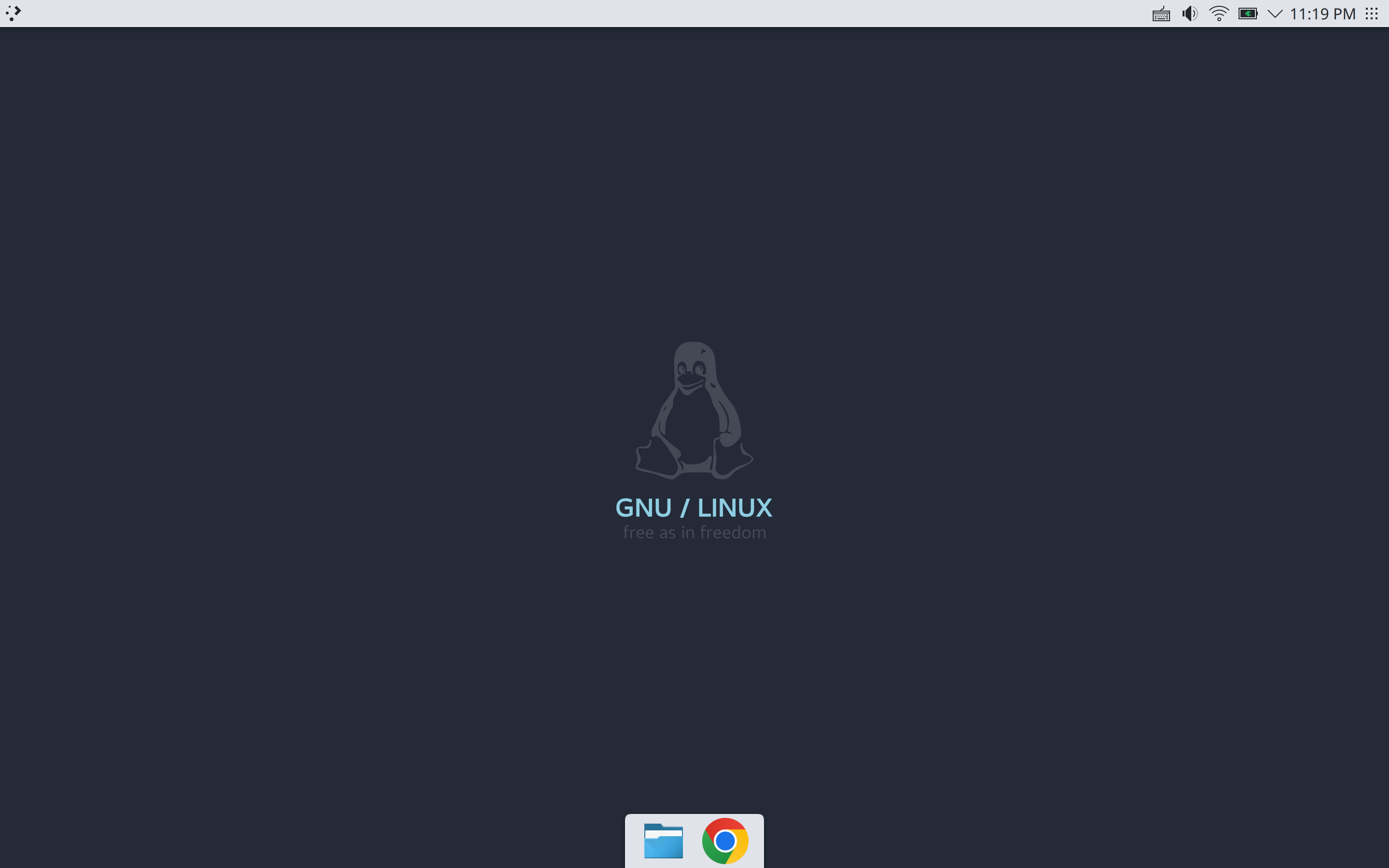
(Mac-style dekstop layout)